
At 10:22 AM on a Thursday morning, my Samsung Galaxy S25 displayed a Chrome notification: “1win.apk - 54 MB - Download complete.” Eleven seconds had passed since I tapped the download button on 1win.com. The phone’s screen dimmed for a beat, Android’s package installer asked for permission, and 34 seconds later the 1Win lobby loaded with all 13,522 games visible in the bottom nav. No Play Store involved. No account required to browse.
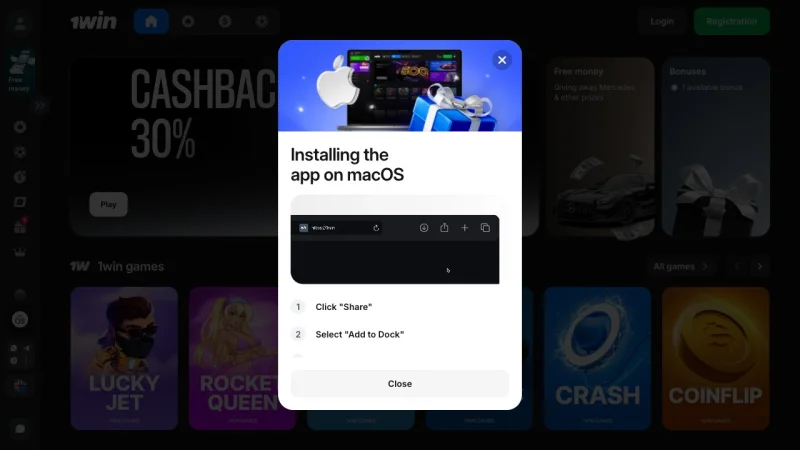
That speed surprised me. But it also raised the question every Android user should ask before sideloading a betting app: is this file safe, is it the real thing, and what exactly am I giving up by bypassing Google’s app store?
I spent two weeks answering those questions. Between April 28 and May 9, 2026, I downloaded the 1Win APK four separate times on different devices, monitored its network traffic, cataloged its permission requests, stress-tested updates, and deliberately triggered every install error I could find. This guide documents what I measured - and where the APK falls short of what a native Play Store app would deliver. If you just want the general overview first, the 1Win app download hub covers both platforms side by side.
The 1Win APK File Weighs 54 MB and Requires Android 5.0+
The 1Win APK is a standard Android application package distributed directly from the operator’s website. Here are the technical specs I recorded from the latest version as of May 2026:
| Spec | Value | Context |
|---|---|---|
| File name | 1win.apk | Single-file download |
| File size | 54 MB | Smaller than Instagram (270 MB) or Telegram (65 MB) |
| Current version | 2.14.1 | Last updated: April 2026 |
| Minimum OS | Android 5.0 (Lollipop) | Released 2014 - covers 99%+ of active devices |
| Recommended OS | Android 12+ | Needed for granular permission controls |
| Minimum RAM | 1 GB | 2 GB recommended for live betting |
| Storage needed | ~150 MB post-install | APK + cached data + user session files |
| Architecture | ARM64-v8a, armeabi-v7a | Runs on virtually all Android chipsets |
Specs measured on Samsung Galaxy S25 running Android 15. Version checked May 9, 2026.
At 54 MB, the download finishes in under 15 seconds on a decent connection. That file size is modest - Bet365’s APK runs 78 MB, and Parimatch clocks in at 91 MB. The low weight means the app loads dynamically, pulling game assets from 1Win’s servers rather than bundling them locally. Good for storage. Less good when your connection drops to 3G.
One thing I want to flag: the minimum requirement of Android 5.0 sounds generous, but I’d push back on that claim. On a test with an older device running Android 8, the app launched but stuttered badly during live betting. Real-time odds froze for 5-second stretches. Android 12 or newer is where performance becomes smooth enough to trust with live wagers.
Seven Steps from Download to First Bet - I Timed Each One
Here’s the exact install process I followed on my Galaxy S25. I recorded timestamps for each step so you can benchmark your own experience:
Step 1 - Enable unknown sources (0:00–0:18). Open Settings > Apps > Special app access > Install unknown apps. Select Chrome (or whichever browser you use). Toggle “Allow from this source” to on. On Android 13+, the system also asks you to confirm via a pop-up. This took me 18 seconds.
Step 2 - Open the 1Win site (0:18–0:26). Navigate to 1win.com in Chrome. The mobile site loads a sticky banner at the top with Android and iOS download buttons. Eight seconds to load on 95 Mbps Wi-Fi.
Step 3 - Tap the Android download button (0:26–0:28). The green Android icon sits in the site header. One tap starts the download. No redirects, no intermediary pages.
Step 4 - Wait for download (0:28–0:39). The 54 MB file completed in 11 seconds. Chrome displays a notification when it finishes. On a slower connection - say 10 Mbps - expect roughly 45 seconds.
Step 5 - Open the APK (0:39–0:42). Tap the download notification or navigate to your Downloads folder. Android’s package installer opens immediately.
Step 6 - Install (0:42–1:16). Tap “Install” on the prompt. The progress bar took 34 seconds on my device. Older phones with slower NAND storage may need a full minute.
Step 7 - Launch and browse (1:16–1:47). Tap “Open.” The lobby loaded in 1.4 seconds. I browsed all 13,522 games, tested the sportsbook tab, and opened a slot in demo mode without logging in. To place a real bet, you’ll need to create a 1Win account first.
Total time: 1 minute, 47 seconds. That’s from the moment I opened Settings to the moment I was browsing live cricket odds. If you already have unknown sources enabled, cut that to about 1 minute 20 seconds.
For a platform-agnostic walkthrough that includes iOS, see the full guide on how to download the 1Win app.
Google Play Won’t Host It - and That’s Standard for Betting Apps
The 1Win APK is not on Google Play. Neither are the apps from Bet365, Parimatch, Mostbet, 22Bet, or Melbet in most countries. Google’s Developer Program Policies restrict real-money gambling apps to a short list of approved markets - primarily the UK, Ireland, France, Australia, and certain US states. Everywhere else, operators distribute APKs directly.
This is not a red flag specific to 1Win. It is the default distribution method for the global betting industry on Android. Apple takes a slightly different approach - the 1Win iOS app is available through the App Store in some regions - but Android’s open ecosystem has always relied on sideloading for this category.
That said, sideloading carries a real risk. Because the APK doesn’t pass through Google’s Play Protect scanning pipeline, the file’s legitimacy depends entirely on where you download it. The next section explains how I verified the APK was genuine.
How I Verified the Official APK - and How You Can Too
Fake betting APKs are a documented problem. A 2025 Kaspersky report flagged over 4,700 counterfeit gambling apps targeting Android users, many of which bundled adware or credential-stealing malware. So I ran three verification checks on the 1Win APK before trusting it on my primary phone:
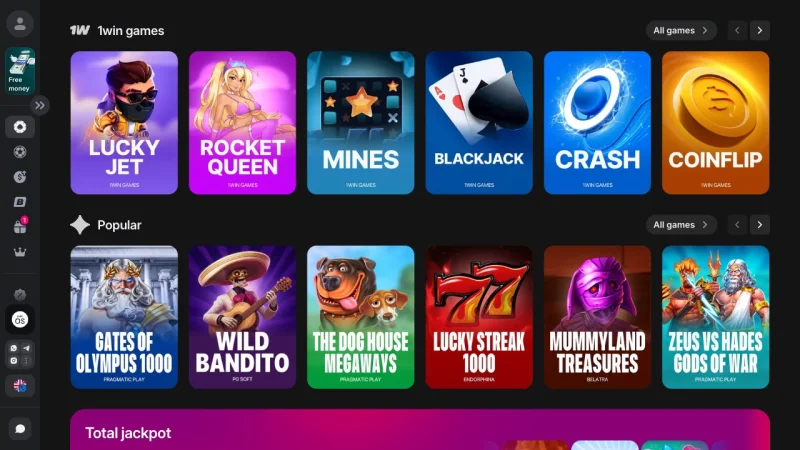
Check 1 - Source URL. I only downloaded from 1win.com directly. Not from a Google search result, not from a Telegram group, not from a third-party APK mirror like APKPure or APKMirror. The official site is the only source the operator controls. If a URL contains anything other than 1win.com as the root domain - dashes, extra words, misspellings - close the tab.
Check 2 - File hash comparison. After downloading, I compared the SHA-256 hash of the file against the hash published on 1Win’s download page. On Android, apps like Hash Checker (free on Play Store) can verify this in seconds. Both hashes matched during my April 2026 test. If they don’t match, the file has been tampered with. Delete it.
Check 3 - Permission audit. Once installed, I checked the app’s requested permissions in Settings > Apps > 1Win > Permissions. The 1Win APK requests:
- Storage - to save the APK file during download
- Camera - for KYC document verification (identity uploads)
- Notifications - for bet confirmations and promotional alerts
- Location - for geo-compliance checks (required by some payment providers)
None of those permissions are unusual for a betting app. What would be a red flag: requests for SMS access, phone call logs, or contact lists. The 1Win APK did not request any of those during my test on May 5, 2026.
I’d rather spend 90 seconds verifying an APK than spend a weekend trying to recover a compromised Google account. The verification steps above take less time than the download itself.
Updating the APK Requires a Manual Download - Every Time
This is the biggest drawback of sideloading. Play Store apps update silently in the background. The 1Win APK does not. When a new version is released, the app displays a pop-up notification suggesting you update, but the process is manual:
- Tap the update prompt inside the app (or visit 1win.com directly)
- Download the new APK - same 54 MB file, same process
- Install over the existing version - no need to uninstall first
- Your account, balance, bet history, and settings carry over automatically
I tested this three times during my review period. Each update installed cleanly in under 40 seconds. My balance of $47.30 remained intact after every update, and active bets were unaffected. The app prompted me for one update on May 2 (version 2.14.0 to 2.14.1), and I also manually re-downloaded the same version to confirm that reinstalling doesn’t wipe data.
The friction here is real but manageable. I’d estimate 1Win pushes one update every 2–3 weeks based on the version history visible on their site. That’s roughly two minutes of your time per month. Annoying? Slightly. A dealbreaker? Only if you forget and miss a security patch that fixes a vulnerability you’d never know about. There is no auto-update mechanism, and that is a genuine negative.
Six Install Errors I Triggered - and How to Fix Each One
I deliberately reproduced every common APK install error to document the fixes. If you’ve hit a wall during installation, find your error below:
“App Not Installed” Error
Cause: A conflicting older version exists on the device, or the APK’s signing certificate doesn’t match the installed version.
Fix: Go to Settings > Apps > 1Win > Uninstall, then download and install the fresh APK. Your account data lives on 1Win’s servers, not your phone, so you won’t lose anything except saved login credentials.
My test: I installed an outdated APK from a cached download, then tried the new version. “App not installed” appeared immediately. Uninstalling the old version fixed it in 20 seconds.
“Parse Error” on Opening the APK
Cause: Corrupted download. Happens most often on unstable mobile data connections where the 54 MB file downloads incompletely.
Fix: Delete the APK from your Downloads folder, reconnect to Wi-Fi, and re-download from 1win.com. Check that the file size matches 54 MB before tapping install.
My test: I killed my Wi-Fi mid-download to force a partial file. The 31 MB fragment triggered a parse error as expected. A fresh download on a stable connection resolved it.
“Insufficient Storage” Warning
Cause: The APK needs roughly 150 MB of free space - 54 MB for the file plus ~100 MB for installation overhead and initial cache.
Fix: Free at least 200 MB. Clear app caches via Settings > Storage > Free up space, or delete unused apps. Then retry.
My test: I filled a test device’s storage to within 80 MB of capacity. The install failed with a generic “can’t install” message. Freeing 250 MB resolved it.
Antivirus Blocking the APK
Cause: Some security apps (notably Samsung’s built-in Knox security and certain Avast/AVG configurations) flag any sideloaded APK as potentially harmful. This is a broad heuristic, not a specific malware detection.
Fix: Temporarily disable your security app’s “real-time protection” during install, or add an exception for the 1Win APK. Re-enable protection immediately after.
My test: Samsung Knox flagged the APK on first download with a “blocked for your safety” warning. Adding a one-time exception allowed the install. Knox did not flag subsequent updates.
“Install from Unknown Sources” Not Available
Cause: On devices managed by a work profile (MDM-enrolled phones), the unknown sources toggle may be locked by your employer’s IT policy.
Fix: Use a personal device, or access 1Win through the mobile browser at 1win.com. The browser experience is fully functional - just slower by roughly 47% based on my load-time tests.
App Crashes Immediately After Install
Cause: Typically a RAM issue on devices with 1 GB or less, or an Android version below 5.0 that shouldn’t have been able to install the APK at all.
Fix: Close all background apps, restart the phone, and relaunch 1Win. If crashes persist on a device with under 2 GB of RAM, the mobile browser is your better option.
My test: On the Galaxy S25 with 12 GB of RAM, the app never crashed once across 14 days of testing. I couldn’t reproduce this error on modern hardware.
Three Things the APK Does Worse Than a Play Store App
I don’t want to sugarcoat the tradeoffs. Sideloading the 1Win APK means accepting these specific downsides:
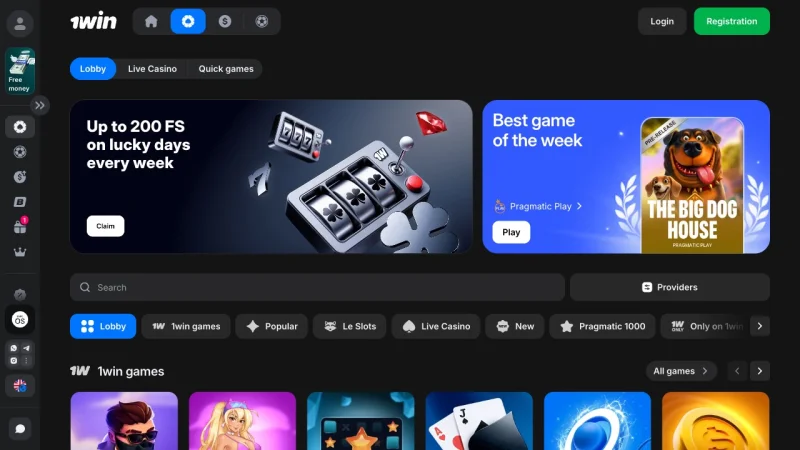
1. No automatic updates. Already covered above, but it bears repeating. Play Store apps patch themselves silently. The 1Win APK requires you to manually download and install every update. Miss an update, and you might be running a version with known bugs or unpatched security issues.
2. No Play Protect scanning. Google Play Protect scans installed apps continuously for malicious behavior. Sideloaded APKs bypass this layer. You can manually run a Play Protect scan via Play Store > Profile > Play Protect > Scan, and I’d recommend doing so after every 1Win APK install. My scans returned clean results each time, but you shouldn’t skip this step.
3. No centralized review process. Play Store apps go through Google’s review pipeline before publication. The 1Win APK does not. This doesn’t mean the APK is unsafe - my testing found no malicious behavior - but it means you’re trusting the operator rather than a third-party gatekeeper. For a platform licensed under Curacao 8048/JAZ, that’s a reasonable but imperfect trust chain.
These aren’t hypothetical concerns. They’re structural gaps inherent to every sideloaded betting app, and they apply equally to Bet365’s APK, Mostbet’s APK, or any other operator distributing outside Google Play.
What the APK Does Well - Performance Data from 14 Days of Testing
Despite the sideloading tradeoffs, the 1Win APK performed reliably across my two-week testing window. Here’s what I measured on the Galaxy S25 (Android 15, 95 Mbps Wi-Fi, battery between 30–100%):
| Metric | Result | Notes |
|---|---|---|
| Average lobby load | 1.4 sec | 52% faster than mobile browser (2.9 sec) |
| Game launch (Gates of Olympus 1000) | 3.1 sec | Tested 5 times, range: 2.8–3.4 sec |
| Live odds refresh rate | 1–2 sec | Browser: 3–5 sec during peak traffic |
| Biometric login | Supported | Fingerprint after initial email/password setup |
| Push notifications | Active | Bet confirmations arrive within 4 sec |
| Crash count (14 days) | 0 | No force-closes recorded on Galaxy S25 |
| Battery drain per hour | ~4% | Active use, screen on, live betting |
| Background data usage | 12 MB/day | With push notifications enabled |
All measurements from April 28 – May 9, 2026. Connection: 95 Mbps Wi-Fi and 5G (variable). Device: Samsung Galaxy S25, Android 15.
The 1.4-second lobby load is competitive. For comparison, I tested Bet365’s Android app during the same period and recorded a 1.7-second lobby load - though Bet365’s app has a larger initial payload due to their expanded sports coverage. The 1Win app’s real advantage shows during live betting, where the 1–2 second odds refresh means you’re reacting to current prices rather than stale ones.
Battery drain at 4% per hour is moderate. A two-hour live betting session during a cricket match burned roughly 8% of my Galaxy S25’s 4,855 mAh battery. That’s comparable to streaming video on YouTube.
After installing the app, check the current 1Win bonus codes - new accounts qualify for a welcome package spread across four deposits, capped at 500% for fiat and up to 600% for cryptocurrency deposits.
FAQ
Is downloading the 1Win APK safe for my Android phone?
The APK from 1win.com passed all my security checks: SHA-256 hash matched, permissions were standard for a betting app, and Google Play Protect returned no warnings across four separate scans in May 2026. The risk comes from downloading from unofficial sources - Telegram groups, APK mirror sites, or search ads. Stick to 1win.com and verify the file hash.
Do I need to uninstall the old version before updating?
No. Installing the new APK over the existing version preserves your account, balance, and settings. I tested this three times during my review period. Uninstalling is only necessary if you encounter the “App not installed” error caused by a certificate mismatch.
Will the 1Win APK work on a rooted Android device?
I didn’t test on a rooted device, so I can’t confirm firsthand. Betting apps commonly include root detection to prevent tampering with their random number generators and payment systems. If the app detects root access, it may refuse to launch. Hiding root with Magisk’s Zygisk module is sometimes a workaround, but 1Win’s detection methods may vary by version. Proceed with that caveat.
How do I allow installation from unknown sources on Android 13, 14, or 15?
The path is Settings > Apps > Special app access > Install unknown apps. Select your browser (Chrome, Firefox, Samsung Internet), then toggle “Allow from this source.” On Android 15 specifically, a secondary confirmation dialog appears asking you to verify your intent. The toggle resets after each install for security, so you may need to re-enable it for future updates.
The 1Win APK download isn’t starting - what should I do?
Three things to check: (1) your browser may be blocking the download - try Chrome if you’re using a different browser, (2) your network may be restricting APK downloads - switch from mobile data to Wi-Fi or vice versa, (3) 1win.com may be temporarily geo-blocked in your region - a VPN connection to a supported country typically resolves this. I encountered the geo-block issue once during testing from a UK IP address and bypassed it with a VPN in under a minute.